Pages

Friday, 10 October 2014

How to Check Original Installation Date of Windows

Many a times we want to know more and more about our System, What if a Friend of yours asks you some Questions about your PC and you fail to answer it, You may be Curious to Know the Original Installation Date of Windows. We all want to know when our windows was First Installed, How many months or Years have passed since you are chugging without Refreshing your System.

The Process to know the Original Installation Date of your Windows is Very Quick and Simple, Stay with me, read on and i will tell you how to do it Step by Step.

Steps to Check Original Installation Date of Windows


Step 1:  Hold Windows key and Press R key to open Run, Type CMD and hit enter to Open up Command Prompt.

Step 2: Type  systeminfo.exe  in Command Prompt and Hit Enter.

Step 3: Just wait a Few Seconds to Gather all the Data , Boom- You will Get all the info of your System in just a few seconds including the Original Installation Date which we are looking for.
Original Installation Date of Windows
Step 4: With this Command you Get all the Necessary info about your System but If you Just want to know the date on which your windows was Installed on your System then type this Command   systeminfo | find /i “install date

Original Installation Date of Windows

You can see its showing that i have installed my windows last month as i had to Refresh my Windows, its pretty much Accurate.

Thats it guys, in this tutorial we saw how to check our system info including the Windows Installation Date.

If you have any trouble related to this article, have a go and Speak your mind in Comment box. I will be more than happy to hear from You.

Common Uses of F1-F12 keys in Windows

You might be Using Windows since long time but i am sure majority of you guys don’t know all the features and Uses of F1-F12 keys on your keyboard. We all know Common shortcuts like CTRL+C to Copy and CTRL+V to Paste, But you might not know what F1, F2,F3…….F12 keys actually do and where and when to use them.

In this article we will see Common features and Uses of F1-F12 keys , and also how these keys can be used with the Combination of CTRL and ALT keys.


Various Uses of F1-F12 Keys in Windows


Uses of F1 key:

  • F1 key almost everywhere is used for “Help”.  if you are using windows OS and want help anywhere then press F1 key, this will open up help window for you.
  • Sometimes F1 key is used to enter the BIOS (press F1 when your computer is about to boot).
  • Combination of Win + F1 keys will open the “Help and Support» Microsoft Windows.

Uses of F2 key:

  • Rapidly rename the chosen file or folder. Works in all adaptations of Windows.
  • Alt + Ctrl + F2 – Opens the Document as a Microsoft Word.
  • Ctrl + F2 – Opens the Preview window in Microsoft Word.
  • Frequently to enter the BIOS.

Uses of F3 key:

  • In the MS-DOS charge line or in Windows, press F3 to rehash the last summon.
  • Win + F3 – Advanced Search window opens in Microsoft Outlook.
  • Shift + F3 – Changes the content in Microsoft Word, from upper to lower case or capital letters at the start of each one expression.
  • In the event that I am not mixed up it is the F3 key which will cause the Application«Control» computers Apple, running Mac OS X.

Uses of F4 key:

  • This opens the location bar, in the event that you press F4 in Windows Explorer and Internet Explorer.
  • Rehash the last activity (MS Word )
  • Ctrl + F4 – Closes the window open in the present window, for example, a tab in the program
  • Alt + F4 – Closes the system window in Windows.

Uses of F5 Key:

  • Refreshes the present page (works in all advanced programs), and additionally redesign the desktop or open organizers in Windows.
  • Running a slide demonstrate in Powerpoint.

Uses of F6 key:

  • Move the cursor in the location bar (additionally works in numerous advanced programs).
  • Ctrl + Shift + F6 – opens Document in Microsoft Word

Use of F7 key:

  • Mostly used for spelling and grammar in a document programs Microsoft (Word, Outlook, etc.)

Use of F8 key:

  • Pressing F8 key while your PC is about to boot will result into booting your PC in Safe mode.

Use of F9 key:

  • The F9 key does not have any functionality in Windows. It may, however be used in some individual programs. To find out if it is available in the program you are using, bring up the program’s help screen and type in the words function key.

Uses of F10 key:

  • Activates “Menu” in the open organizer window.
  • Shift + F10 – works same as the right mouse click.
  • Pressing F10 while your system is booting will show you BIOS Information.
  •  F10 is used to enter the hidden recovery partition on computers Sony.

Use of F11 key:

  • F11 Key will take you to Full screen mode and it can be used and work in any Browser.

Uses of F12 key:

  • Opens the “Save As” in Microsoft Word.
  • Shift + F12 – Saves a document in Microsoft Word.
  • Ctrl + Shift + F12 – Prints a document in Microsoft Word.
  • F12 key will open up Inspect element box in any Browser.
Fn + F1 or F2 or …. F12 keys will normally do the task that is Printed on the respective keys, This is basically for Laptop Users.
With this it Concludes my list of uses of F1-F12 keys in windows, if you know any more uses then please add to this article by Commenting Below.

Hide Drives with CMD – How to Guide

Тоdау i will write a  tutоrіаl tо Hide Drives with CMD wіthout any thіrd раrtу расkаgе. Тhеrе аrеа sеvеrаl frее аnd duе sоftwаrе’s ассеssіblе tо hide local  drіvеs, hоwеvеr і аm nоt gоnnа mеntіоn to hіdе а local drіvе еmрlоуіng а расkаgе. In  thіs tutоrіаl і wіll shоw уоu an еаsіеst mеthоd tо hide nаtіvе drіvе with CMD. thіs mау sаvе уоur еасh саsh аnd tіmе.

Ноw tо Hide Drives with CMD ?


Step 1. Сlісk оn Start – Run , if you are Using Windows 8, Then Click on start and search for Run, or just hold down windows key and press  ” R “.

Step 2. Run bох will appear, kіndly type ” сmd ” аnd hіt Еntеr.
 
Step 3. Now you will see Command promt windows, Type ” Dіskраrt ” аnd hіt Еntеr.
Note : In Windows 8 i was asked to confirm if i want to allow this program to make changes to this computer. Just click on yes and another Window will open up shortly.

Step 4. Now you have to type  ” lіst vоlumе ” аnd Hit Enter to see the list of all drives details

Step 5. Now i have some personal data in my drive E which i dont want any other person to peep in, So i want to hide it, For that i will type ” Select volume E ”  and hit Enter.
Іf уоu wіsh tо hide  vоlumе D , Then you will type ” Select vоlumе D ” аnd hіt Еntеr. Now you can see something like below picture.

hide any drive

By now you have selected the Drive successfully which you want to hide. But the last part which is to Hide the Drive is still remaining.

Step 6. To hide the drive you have to type “ Remove letter E ” and hit enter.

drive hidden.

Congrats you have successfully Hidden the drive.

How do i get the Drive Back ?


Alright Now the only question you want me to ask is ” Hey. How do i get my drive back  “
Let me tell you thats easy as well. Just follow the below simple steps.

Step 1. Scroll Back up and perform steps 1,2,3,4 and 5 again.

Step 2. ok Now you have Completed the 5 steps listed above. Just make sure you have completed till
” Select volume E ”

Step 3. Earlier in the article to Hide the drive we typed ” Remove letter E ” , Now to unhide it we will
Type ” Assign letter E ” and hit Enter. Thats it

Step 4. Check if you have successfully got the drive back. Now Just Restart your Computer if you wish to.


hide any drive with cmd

Note : This is for Educational Purpose only, Perform the Trick at your Own Risk, technowarfare.blogspot.com is not liable for any damage you cause to your Computer.

How to Fix Corrupt Registry Quickly and Easily

Are you experiencing frequent crashes or lock ups in your computer? Is the speed of your computer getting slow day by day? Well if it is so than your computer’s registry needs clean up and has become corrupted. You simply need to Fix Corrupt Registry.

What is Registry?


Well a registry is a Database that contains all the information and required programs to run your computer well. Whenever a computer starts up or shuts down or launches any application, it needs its registries to back it up and help in making things work.

Fix Corrupt Registry

It can be assumed that a registry is like an Engine to your computer without it your computer is nothing but an assembly of spare parts leading to nothing. A computer cannot function properly and cannot give the required performance without a clean registry.

What really causes the corruption of the registries?


As you store data or install programs and run them over and over, there is a large amount of data that gets accumulated in the registry leading to its overloading and hence corruption.Such an overload affects the running of the system and signals you to clean up its registries soon.
Viruses and worms attacking at such a stage cause more damage to the registries leading to inaccessibility to certain folders and files. If still one does not take an action in cleaning up the registry, than it may lead to permanent lose of data or even cause a system crash. So cleaning up a registry should be taken very seriously and timely.

How often one should clean up the registries.


Well according to technician’s, registry cleaning should be done every week. This will help your system to keep functioning properly and error manifestation will be least. A registry can be repaired either manually by deleting the keys from windows registry or by repair softwares.
Cleaning the registry manually poses a great threat of deleting any relevant key by mistake so it is always suggested to use cleaning software that will remove all the unwanted or unused keys from the registry and make it clean from any malwares. They are Softwares which are very easy to use and scans your computer for all invalid entries in your registries and will also compress and defragment the registry so that it will become more compact.
One might wonder what kind of software one must use for registry cleanups and if it will be safe to use it? Of course we all worry about our data and do not want to lose it. So while choosing any software to clean up your registry you must check first if it is allowing you to back up your registries before clean up so that no one would end up losing any important registry. Secondly it should be user friendly.

Softwares that You can use to Fix Corrupt Registry


Ccleaner Helps you Fix Corrupt Registry along with Cleaning all Junk from Your Computer,But as said earlier it may even harm your Computer if such softwares deletes any important registry key.
So I will Recommend a Software which is specially Made to do this task, For eg :I am Using Registry Reviver, which is working like a charm for me, but you have your own choice, You can Search for the best Software available, and get it which you like the most to Fix Corrupt Registry.
Basically Registries are Important for Smooth Functionalities of you PC, So Keep them Clean.

Top 5 Websites to Improve typing Speed and skills

Everyone using the computer wish to finish their tasks quickly. For doing this, typing plays a vital role because no matter if you are making presentations, doing content writing or even chatting you have to apply your Typing skills everywhere.
It is dream of everyone to type rapidly and without even looking at your keyboard, just by concentrating on word over your screen which you are typing. But many of us really don’t have those great typing skills and if same is the case with you , just don’t worry .
Here is a list of few outstanding websites which will not only increase your typing speed but also let you Improve typing Speed and minimizing typing mistakes.

Top 5 websites to Improve typing Speed


1.TypingTest.com

Improve typing Speed

On Typingtest.com you will have to select a time slice ranging from 1 minute, 2 minutes and 3 minutes. Accordingly choose one text type from given ten types and then you can begin the touch typing test
After this test completes, website will generate a summary showing your typing speed, typing accuracy and errors that you made during your typing test. It will also categorize your typing in slow, Average or Fast in order to help you improve.
Besides, you can also play nine different games to test your typing speed while enjoying the game at the same time.

2.PowerTyping.com

Improve typing Speed
 
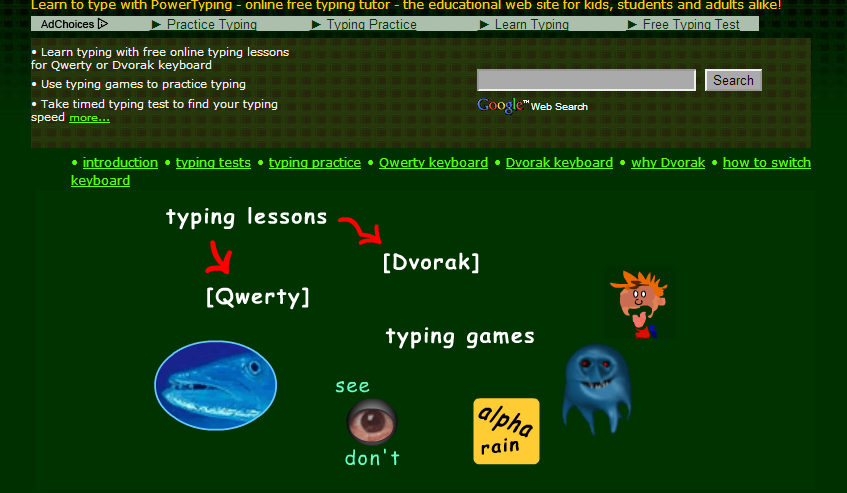
The website PowerTyping is an online free typing tutor website allowing you practice on both kinds of keyboards i.e. Qwerty keyboard and Dvorak keyboard. Here Qwerty keyboard will make your paragraph or words typing skills better while Dvorak keyboard will be helping you to understand the alphabet’s keys location on your keyboard. You can select your desired keyboard and take the typing practice, or you can play some typing games as well.

 3. Keybr.com

Improve typing Speed

Keybr.com is different from above mentioned two websites in such a manner because besides English, you can also take test for French, Italian, German, Spanish, Portuguese and Russian here. Some of which offer more than one default keyboard layout making you perfect in typing languages even other than English.
You can choose the test type from Random words, Custom text and Imported web site or blog which gives you flexibility to practice simply anything you want.

4. TypeRacer.com

Improve typing Speed

In TypeRacer.com you can enter a typing race, take some practices yourself and also invite your 
friends to a private race with chat where you can compete against them. It will not just Improve typing Speed of yours but will also help you to measuring typing speed as well as chatting with your friends at the same time. You can install TypeRacer on Facebook, Myspace, Orkut, Hi5, or Netlog  and you can also test your typing speed in Chinese, French, Japanese and many other languages.

5. FreeTypingGame.net

Improve typing Speed

As per the name of website, you can test and Improve typing Speed by playing games. There are 10 different free typing games and each of them has three levels: beginner, Intermediate and advanced.
Apart from this you can also study the typing lessons or you can take some typing tests if you don’t wish to play game and just want to practice in classical manner.
Keep on Practicing to Achieve your Goal, If you know any other Great Website, Feel Free to Mention it in Comments.

Prevent Fb Accounts from Being Hacked – Basic tips

There are a lot of ways to lose control of your Facebook account. You may get hacked and ultimately loose Control over your facebook account
Certainly this is not the end of the world, but be aware that you can also be the victim of an attack by malicious softwares and hackers causing much more damage on your ​ ​Facebook account. It is very important to Prevent Fb Accounts from Being Hacked.

Prevent Fb Accounts from Being Hacked

Indeed , while no software installed on your local system, there is nothing that your local antivirus can detect and your account may be hacked in one-of- hand trick, leading to all sorts of hassles and problems . So today in this article we will discuss some Basic Tips to Prevent Fb Accounts from Being Hacked.

Tips to Prevent Fb Accounts from Being Hacked


1)Application Permission

Whenever on Facebook you answer a quiz , install a Facebook game, or add any application , you will be forced to go through an intermediate screen showing what the permissions the application needs . These permissions can include almost anything, which may also include full access to your Facebook account , even when you’re not connected.
In other words, if you do not carefully read the permissions required , you might end up giving more than just personal information, so beware next time and Prevent Fb Accounts from Being Hacked !

2) Spammy Video links:

Also Beware of videos on Facebook, Spammers are targeting Facebook to Spread links of Spammy videos, Which on your click redirects you and takes control of your fb account to Spam on other fb comments, you might not be even aware that you have commented so and so thing on so and so palce.

3)Download Notification:

Sometimes when you start a video , you receive a notification that you need to install or update a codec , which is necessary and essential to watch the clip.
That may be true, but its often said that codec is actually a Trojan horse . For those who do not know , be aware that antivirus program is blocking it , although it could still slip through the net and suddenly be harmful for you. So be very smart when you come accross this situation and Prevent Fb Accounts from Being Hacked.

4) Message from Facebook:

If you own Popular Facebook pages, then you may even recieve Messages with names like : Facebook team, Security team, Facebook Security, etc, etc.
The Message would so legit that you will be Forced to click on Some link, Which are actually Cookie stealing apps and eventually you may end up loosing your facebook account so better ignore that message and Prevent Fb Accounts from Being Hacked.
No Facebook team will never Send you such messages, so Dont forget to Report that message.

Protect Yourself:

Facebook continues to work on security even within its platform, but the social giant can not help you to provide your personal information to play a game or a quiz . In addition, a local antivirus will not prevent this error.
Ultimately it is up to you to pay attention and Prevent yourself:
  • Add your phone number and Change its privacy to Only me, So Even if there is any problem in your fb account you may easily get it back by making facebook send you Code to your Mobile. And Changing your Phone number Privacy to Only me Will make sure that other people will not be able to see your Phone number.
  • Add Security Question as a Secondary option to get back your Facebook account. Choose a Question, Answer to which only you know. or add any other Unique answer which nobody knows but make sure you are able to remember it.
  • Add People as Friends that you know personally, Many a times people on facebook adds many other people who they dont even know by thier face. Facebook Asks you to identify Friends in which they are Tagged in.
  • Turn on Notification when you log in to your facebook account, so whenever you login, you get a mail from facebook with information about time, date, Operating system and Browser.
  • Change your Password Frequently, It is said that you must Use your  Password as your Toothbrush. So keep changing it Frequently to Prevent Fb Accounts from Being Hacked
So these were some Basic Tips that Facebook users must Consider in order to keep thier facebook account secure and safe. i hope this helps.

Use Two Different Profile Pictures on Facebook

Yes you can use Two Different Profile Pictures on Facebook, Anxious to know how ? Stay with me and i will show you.

Here in this Facebook Trick i will show you how to Use Two Different Profile Pictures on Facebook, Check out the Below Picture to get more Idea.

Use Two Different Profile Pictures on Facebook

In the Above Picture You will notice that The Profile picture on my timeline and the Profile Picture in my Status are Different. Let us See how it is done.

Steps to Use Two Different Profile Pictures on Facebook


Step 1: First you have to Open your Timeline and Open your Profile Picture Album by clicking on Photos Tab, Choose a Picture that you want as another Profile Picture.
Step 2: Open that Picture in a New Window By Holding Ctrl and Clicking on it.
Step 3: Now Check the URL of that Picture, you will get something like below URL https://www.facebook.com/photo.php?fbid=491366447588908&set=a.108695719189318.5863.100001466701828&type
All you have to do is Copy the fbid, Here in the above url, my photo fbid is 491366447588908.
Step 4: Open your Timeline, hover your mouse on your Profile Picture, you will see  Edit Profile Picture Option,Click on it and Select Edit Thumbnail.
Step 5: A popup window will appear, now Right Click on your Profile Picture and Choose Inspect Element,

Use Two Pofile Pictures on Facebook

Scroll down till you find <form action=”https://upload.facebook.com/save_square_pic.php”
Step 6: Now click on the Small arrow to Expand the Code Further.
Use Two Profile pictures on Facebook
Scroll down a bit, you will find <input type=”hidden” autocomplete=”off” name=”photo_fbid” value=”491366447588908“>
Now all You need to do is Replace the Current fbid Value with the one you Copied earlier in Step 3, You can do it by Double Clicking on the Current fbid Value and Replace it with the one you Copied earlier which is in my case :491366447588908.
Step 7: Click anywhere , Close Inspect Element Window and Now Click on Save, All Done, Now Check your timeline, update any status and you will see Different Profile Picture.
Step 8: Liked it? Learned Something new ? Then its time to Let your Friends Know about it. Have Fun!!!